Mobile Network Not Available: Causes, Carrier Issues & Complete Troubleshooting Guide (2026)
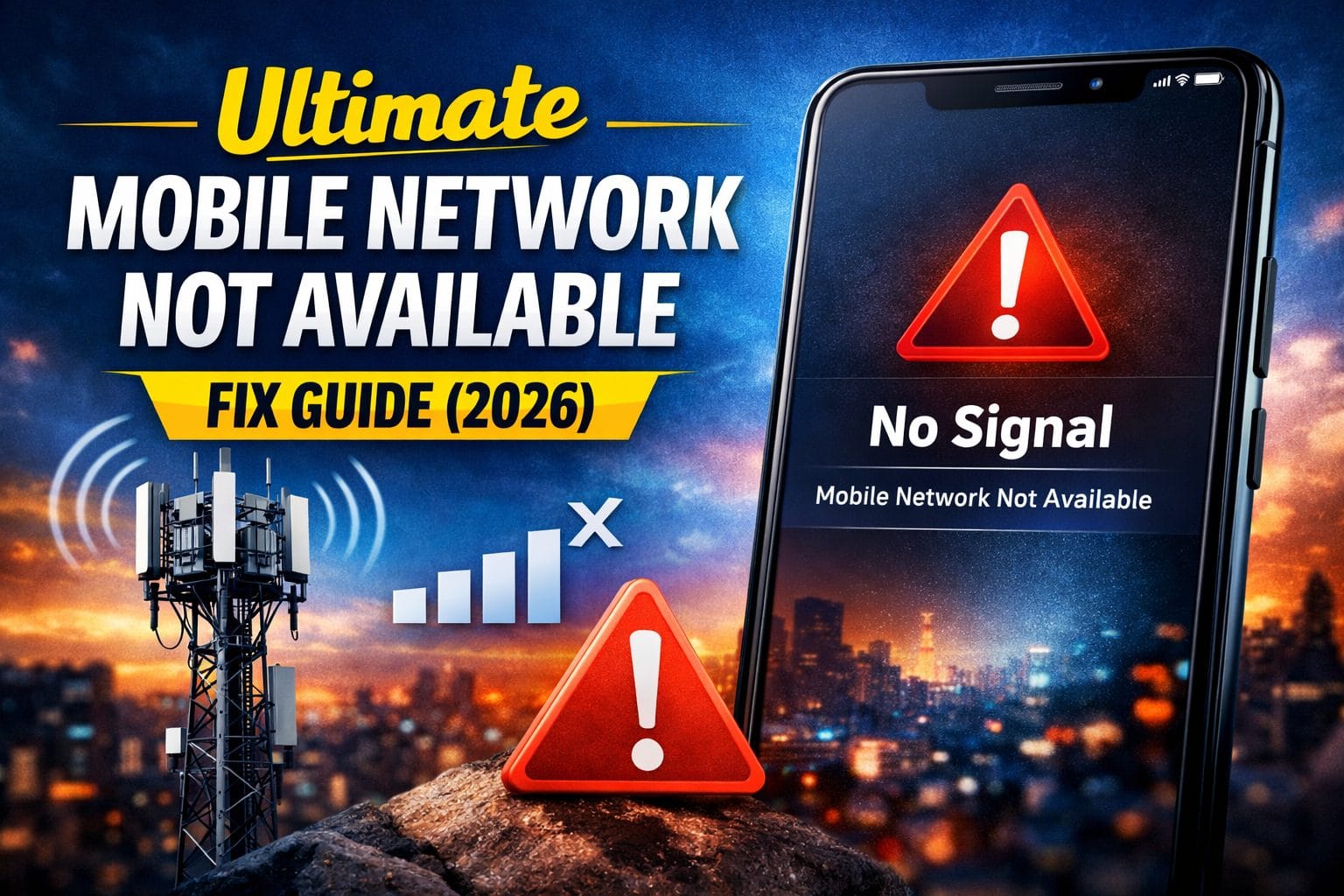
You only notice how important mobile signal is the moment it disappears.
You tap a contact. Try to place a call. And instead of ringing, your screen throws up a cold message:
“Mobile Network Not Available.”
No bars. No service. No outgoing calls.
If you’re repeatedly seeing the mobile network not available message throughout the day, it usually signals a deeper connectivity issue rather than a one-time glitch.
I’ve dealt with this on Samsung flagships, budget Androids, and multiple iPhones — and here’s the truth most quick-fix blogs won’t tell you:
This error isn’t one single problem.
And when your phone keeps showing mobile network not available, it’s rarely random — something in the carrier handshake process is failing.
It’s a symptom.
And until you understand what’s actually failing — signal, SIM authentication, carrier handshake, modem software, or IMEI validation — you’re just guessing.
Let’s fix that properly.
What You’ll Learn
What “Mobile Network Not Available” Actually Means
When your phone shows mobile network not available, it means your device failed to register with your cellular carrier.
In simple terms, the mobile network not available error appears when your device cannot establish a stable connection with a nearby cellular tower.
That registration process normally happens automatically in the background:
- Your SIM identifies your account.
- The phone’s modem searches nearby cell towers.
- The carrier authenticates your SIM and IMEI.
- A network connection is established.
If any part of that handshake fails, your phone can’t make calls or send texts — and you’ll see:
- No Service
- SOS Only
- Emergency Calls Only
- Network Unavailable
Wi-Fi may still work because that bypasses the cellular modem entirely.
Why This Happens (Real Causes Ranked by Frequency)
From real-world troubleshooting, these are the most common triggers behind the mobile network not available problem:
1. Weak or No Signal Area
Basements, elevators, rural zones, concrete buildings.
2. Carrier Outage
Major networks like T-Mobile, Verizon, and AT&T occasionally experience regional outages.
3. SIM Card Authentication Failure
Loose tray. Dirty contacts. Deactivated SIM.
4. Incorrect Network Mode
Forcing 5G in a weak LTE area often causes network drops.
5. Corrupted Network Settings
Bad APN configuration or system glitch.
6. IMEI Blacklist
If a device is reported stolen or has unpaid carrier balance.
7. Software Bugs
Especially after major Android or iOS updates.
Diagnose Before You Fix (Critical Step)
Before trying random fixes, check:
🔎 Do you have signal bars?
- Zero bars → Likely coverage or outage.
- Bars but can’t call → SIM or authentication issue.
- Data works but no calls → Network mode or carrier config.
- New SIM doesn’t work either → Possible IMEI problem.
Understanding which scenario applies helps you solve the mobile network not available issue much faster instead of jumping between random fixes.
Now let’s fix it step by step.
Step-by-Step Troubleshooting (Ranked by Success Rate)
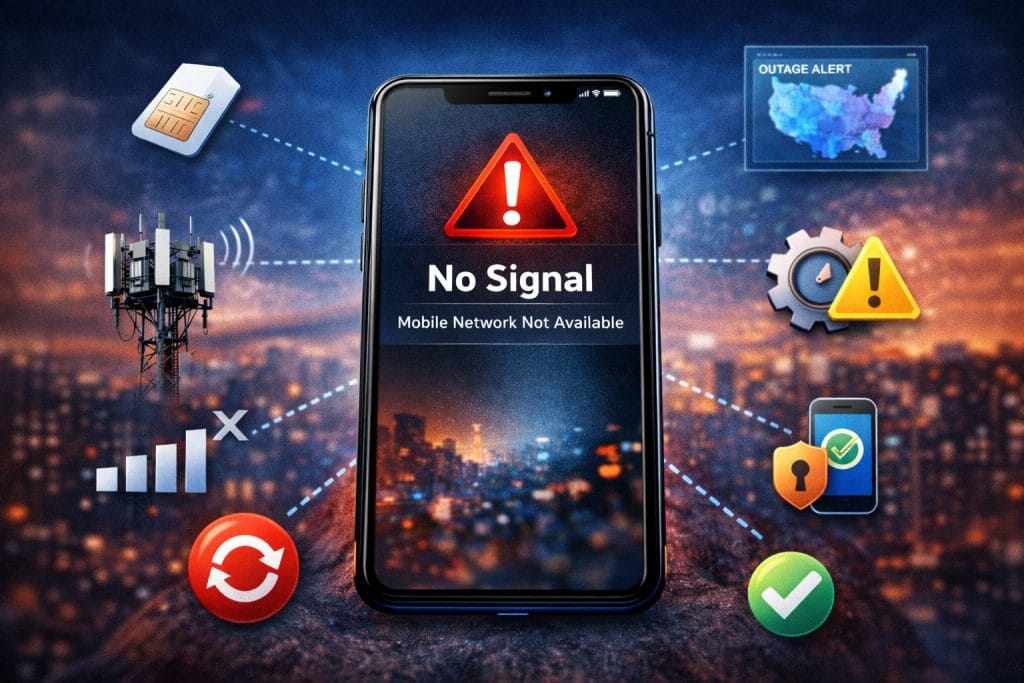
Start simple. Move gradually.
1. Toggle Airplane Mode (Fastest Reset)
Why it works:
It forces your phone to re-scan and re-register with towers.
How:
- Android: Quick Settings → Airplane Mode ON (15 sec) → OFF
- iPhone: Settings → Airplane Mode → Toggle
This alone fixes about 30% of temporary signal issues.
2. Restart the Phone Properly
A restart resets modem firmware.
Do not just lock/unlock — fully power off.
Wait 30 seconds before turning back on.
3. Remove and Reinsert the SIM
Power off first.
- Eject SIM tray.
- Clean gold contacts with microfiber cloth.
- Reinsert firmly.
If possible, test the SIM in another phone.
If it fails there too → SIM issue confirmed.
4. Check Carrier Coverage or Outage
Before blaming your phone:
- Ask someone nearby on same carrier.
- Check outage trackers.
- Open your carrier app (if Wi-Fi works).
Large outages can push phones into SOS mode for hours.
5. Manually Select Network Operator
Auto-selection sometimes fails in weak areas.
Android:
Settings → Network & Internet → Mobile Network → Network Operators → Search Manually
iPhone:
Settings → Cellular → Network Selection → Turn off Automatic → Choose carrier
6. Switch Network Mode (5G to LTE)
5G instability is more common than people realize.
Android:
Preferred Network Type → LTE/4G
iPhone:
Cellular → Voice & Data → LTE
If signal stabilizes — congestion was the cause.
7. Reset APN Settings
APN (Access Point Name) connects your phone to carrier data gateway.
Incorrect APN = no mobile data or limited service.
Android:
Mobile Network → Access Point Names → Reset to Default
iPhone:
Reset Network Settings (APN resets automatically)
8. Update Carrier Settings / Software
Outdated modem firmware often causes handshake failures.
Android:
Settings → System Update
iPhone:
Settings → General → About (carrier update prompt appears automatically)
9. Reset Network Settings
This clears corrupted configs without deleting photos or apps.
Android:
Reset Options → Reset Wi-Fi, Mobile & Bluetooth
iPhone:
General → Transfer or Reset → Reset Network Settings
You will lose saved Wi-Fi passwords.
10. Disable VPN
VPN apps sometimes block proper carrier routing.
Turn off all VPN services and test again.
11. Boot Into Safe Mode (Android Only)
Third-party apps can interfere with modem services.
Hold Power → Long press Restart → Safe Mode
If signal works → uninstall recently installed apps.
12. Check IMEI Status
Dial:*#06#
If IMEI shows null, 0, or is blacklisted — carrier must resolve it.
A blacklisted device will continue showing mobile network not available regardless of SIM replacement.
13. Factory Reset (Last Resort)
Only after all other fixes fail.
Back up everything first.
This removes deep software corruption.
Carrier-Specific Behavior (What I’ve Seen in Practice)
T-Mobile
5G congestion frequently causes intermittent signal drops in dense cities.
Verizon
Outages often push devices into SOS mode even with bars visible.
AT&T
Billing suspension or SIM reprovision errors can block network registration.
Always confirm account status before assuming hardware failure.
Android vs iPhone: Key Differences
Android
- More granular network control
- Manual APN editing
- Safe Mode diagnostics
iPhone
- Cleaner interface
- Carrier updates integrated
- Fewer manual adjustments
Android offers more control.
iPhone offers more stability.
How to Prevent This in the Future
- Keep software updated monthly.
- Avoid forcing 5G in weak coverage zones.
- Don’t ignore carrier update prompts.
- Keep SIM tray clean.
- Enable Wi-Fi Calling in low-signal areas.
- Avoid installing suspicious network-altering apps.
If you live in a rural zone, consider signal boosters.
FAQ
Why does my phone say mobile network not available but Wi-Fi works?
Because Wi-Fi bypasses cellular radio. The issue lies with SIM, carrier authentication, or tower connection.
Does resetting network settings delete personal data?
No. It removes saved networks only.
Is this problem common in rural areas?
Yes. Lower tower density increases registration failures.
Can a software update fix network unavailable errors?
Yes. Many updates patch modem firmware bugs.
How do I know if my SIM is bad?
Test it in another phone. If it fails there too, replace the SIM.
How long do carrier outages last?
Anywhere from minutes to several hours depending on severity.
Final Thoughts
The “mobile network not available” message feels alarming — especially when you urgently need to call someone.
But in most cases, the mobile network not available issue is temporary and linked to signal instability or configuration problems rather than permanent hardware damage.
It’s either:
- Temporary signal failure
- SIM authentication issue
- Carrier outage
- Software misconfiguration
Work through the steps methodically.
Don’t jump straight to factory reset.
In my experience, 9 out of 10 cases are solved before step 7.
And once you understand how your phone actually connects to a network, this error becomes far less intimidating.
Your signal will come back.